---
title: Chat Backgrounds
updatedAt: 2026-10-12T15:04:26.365Z
---
Fetch the complete documentation index at: https://docs.watchers.io/llms.txt
# Chat Backgrounds
You can set up a branded or just fun background for all chats, or add a specific background for different rooms.
##  Settings on the admin panel
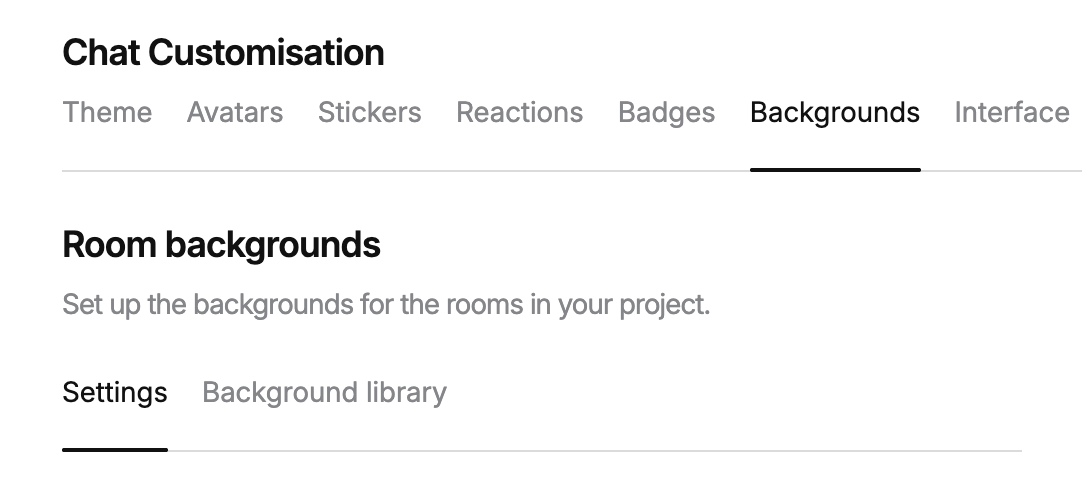
Open the section [Chat customisation > Backgrounds.](https://chatadmin.watchers.io/chat-customization?tab=backgrounds)
###
Settings on the admin panel
Open the section [Chat customisation > Backgrounds.](https://chatadmin.watchers.io/chat-customization?tab=backgrounds)
###  Background library
Then, decide what exactly you want to set up as a background.
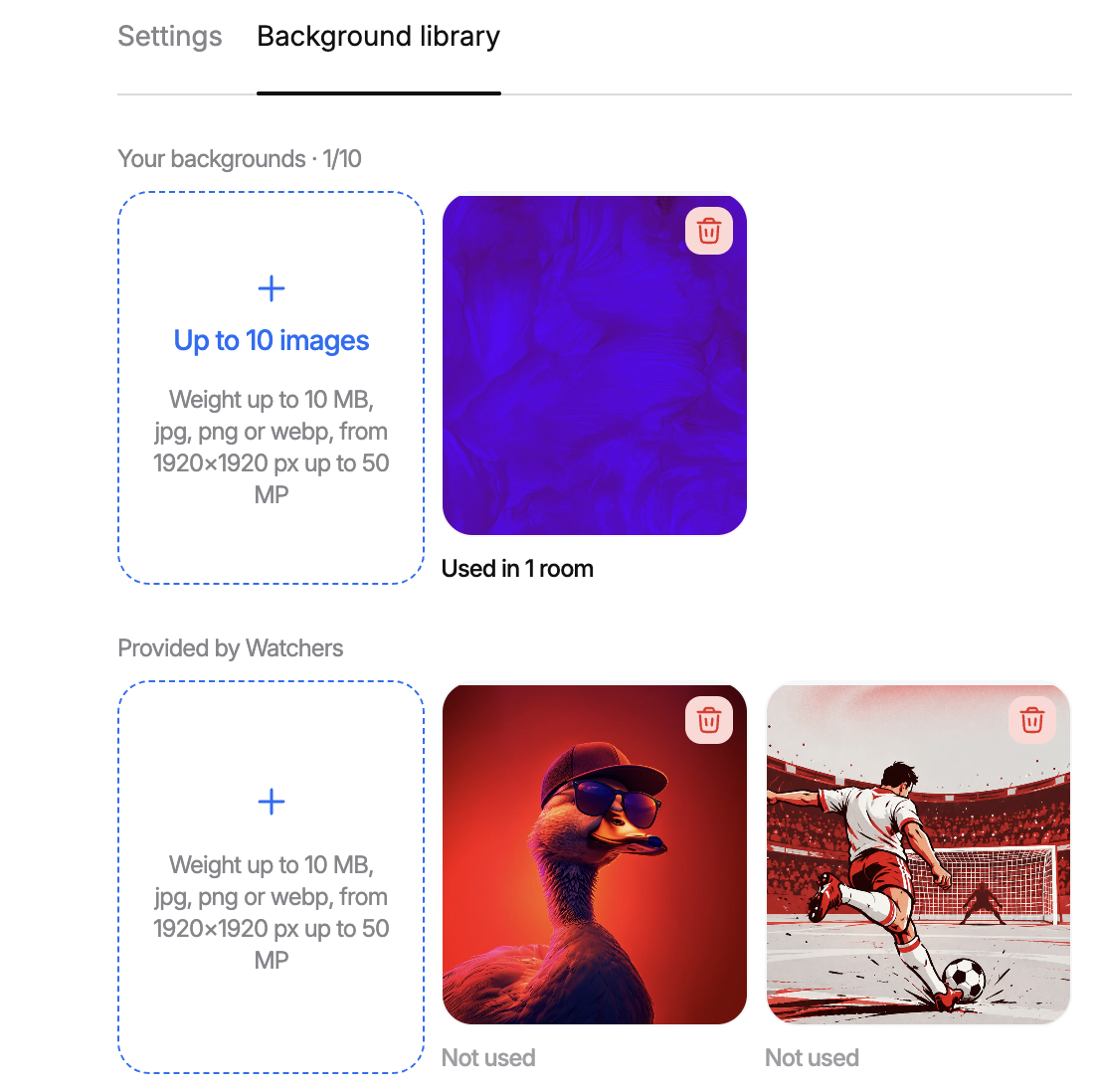
You can choose one of the images we provide as default options, or upload your own pictures. To do so, open the background library.
You will see two groups of pictures:
**1 - your own images.** You can upload up to 10 images, the requirements are spicifed on the admin panel:
```
Weight up to 10 MB,
Format: jpg, png or webp
Size: from 1920×1920 px
```
**2 - images provided by Watchers.**
You can add or delete images from the library anytime.
###
Background library
Then, decide what exactly you want to set up as a background.
You can choose one of the images we provide as default options, or upload your own pictures. To do so, open the background library.
You will see two groups of pictures:
**1 - your own images.** You can upload up to 10 images, the requirements are spicifed on the admin panel:
```
Weight up to 10 MB,
Format: jpg, png or webp
Size: from 1920×1920 px
```
**2 - images provided by Watchers.**
You can add or delete images from the library anytime.
###  Settings
Then, proceed to *Settings*.
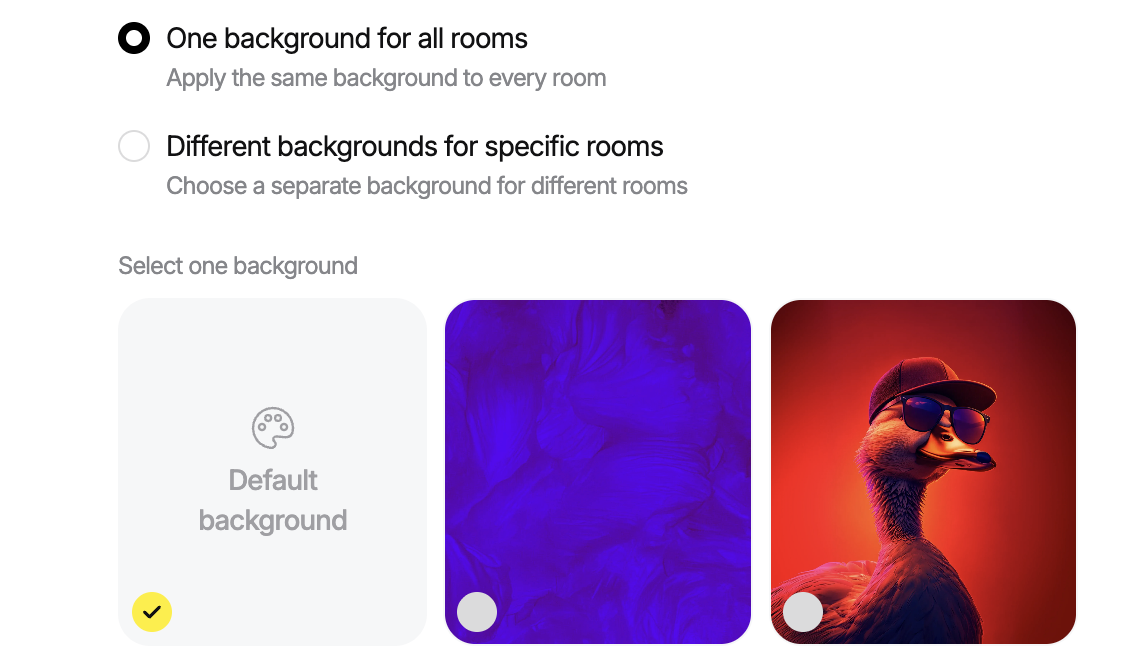
Decide if you want to set up the same image as a background for all rooms available on the platform, or different backgrounds for different rooms.
If one background for all rooms is your choice, just choose it and click *Save*.
Settings
Then, proceed to *Settings*.
Decide if you want to set up the same image as a background for all rooms available on the platform, or different backgrounds for different rooms.
If one background for all rooms is your choice, just choose it and click *Save*.
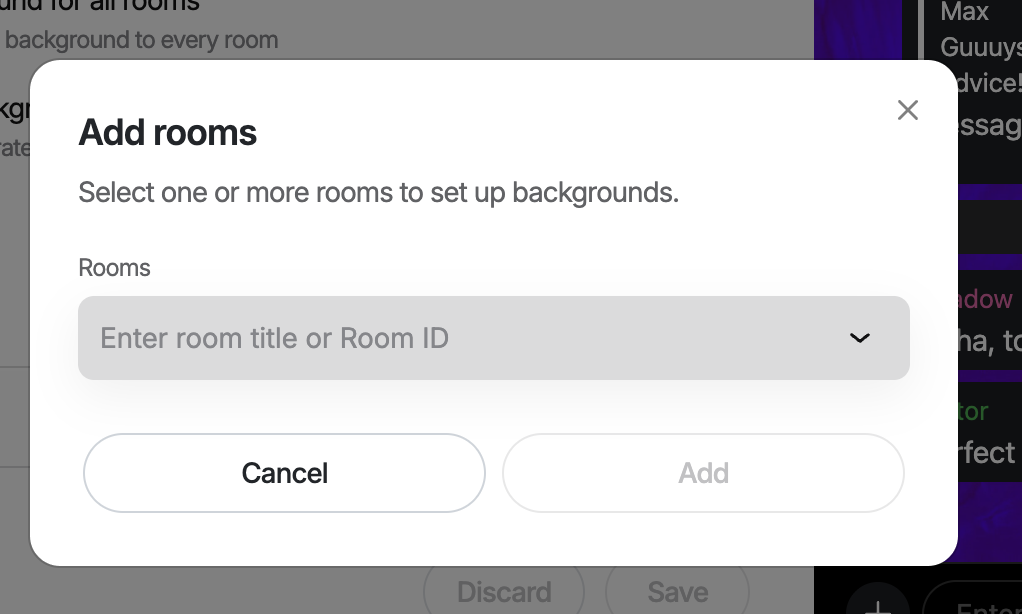
 If you have different backgrounds for different rooms, click Add rooms, when it appears on the list, set the image from the library.
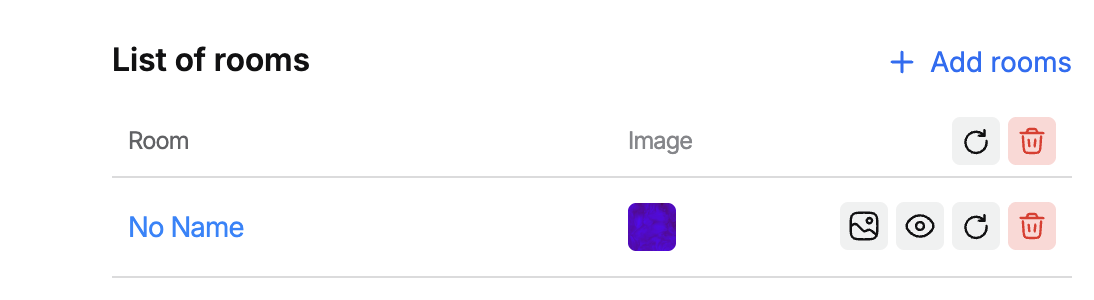 Once a room is added to the list, you can change its background, preview it, reset the background, or delete the room from the list. Deleting also resets the background.
Any room includes threads and dialogues with AI assistants. If the background is set for the parental room, all rooms opened inside it will have the same background.
If you want to set a background for the fan chat, which opens for fan clubs, please note that the background must be added and set like for the parental room. Fan chat is a separate chat, not part of any parental room. [More about Fan Clubs.](https://docs.watchers.io/docs/fan-clubs)
## User interface
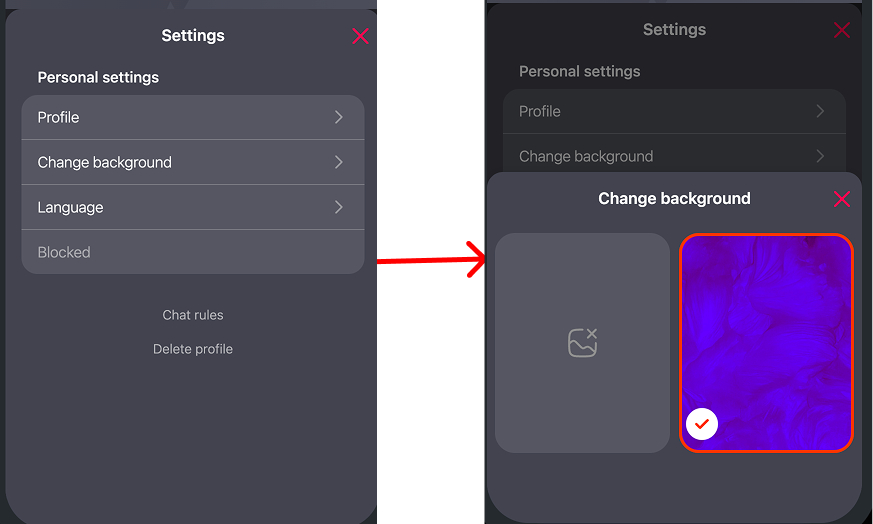
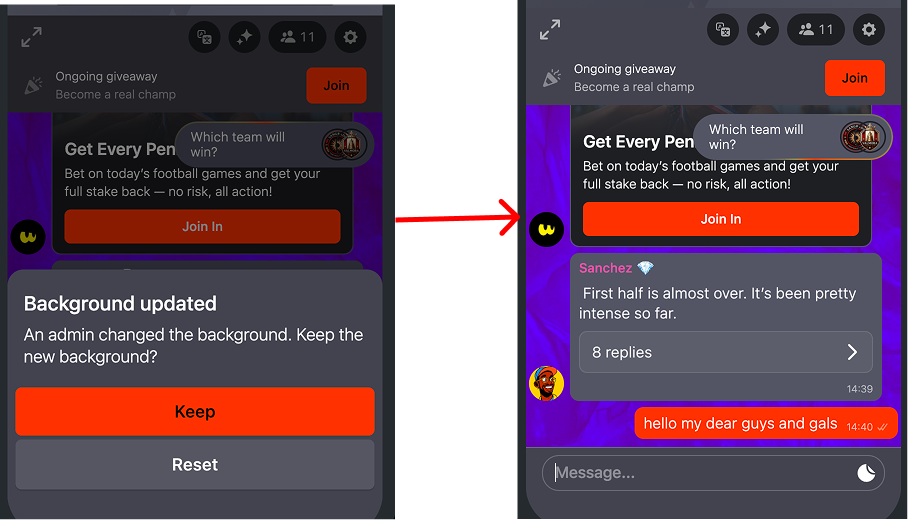
When an admin set up a new background through the admin panel, users see the notification—they can keep a new background for the chat, or reset it to the default one.
Once a room is added to the list, you can change its background, preview it, reset the background, or delete the room from the list. Deleting also resets the background.
Any room includes threads and dialogues with AI assistants. If the background is set for the parental room, all rooms opened inside it will have the same background.
If you want to set a background for the fan chat, which opens for fan clubs, please note that the background must be added and set like for the parental room. Fan chat is a separate chat, not part of any parental room. [More about Fan Clubs.](https://docs.watchers.io/docs/fan-clubs)
## User interface
When an admin set up a new background through the admin panel, users see the notification—they can keep a new background for the chat, or reset it to the default one.
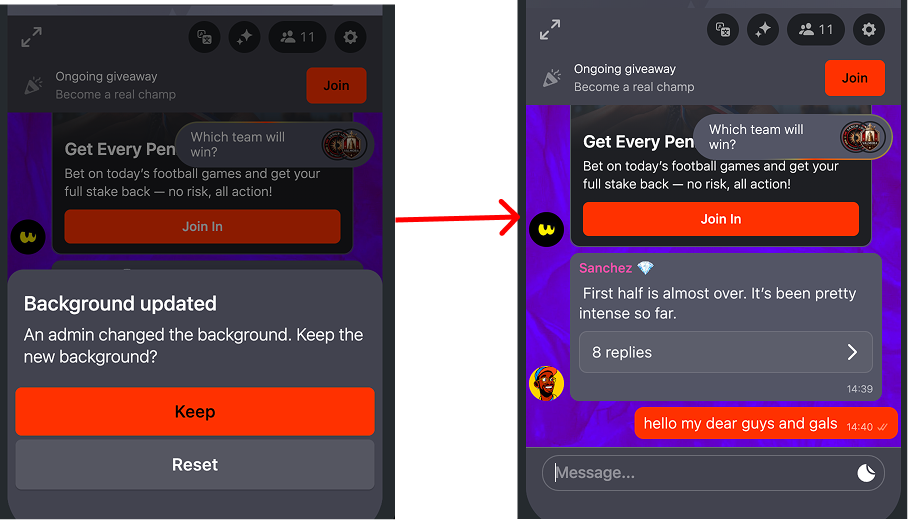 If they decide to keep it, they will see their chat with the new background.
They can reset it later in their chat profile. If they reset it initially, they can choose and set it up for their chat later as well.
If they decide to keep it, they will see their chat with the new background.
They can reset it later in their chat profile. If they reset it initially, they can choose and set it up for their chat later as well.