
Additional Interface Actions
Exit button or full screen
Overview
The Left side controls option lets you choose what appears on the left side of the chat header. These controls are useful when the chat is embedded as an iframe and you want users to be able to expand it to full screen or close it without leaving the chat.
There are two underlying actions:
- Full screen — toggles the chat between an embedded view and full-screen mode.
- Exit — sends a "close" event to the parent page (for example, to hide the iframe).
Both actions are implemented as postMessage events from the chat to the parent window — the chat itself does not change the iframe size or close anything; your integration listens for the events and reacts.
How to enable
- Go to Admin panel → Settings → Chat Customisation → Interface.
- Pick the platform you want to configure: Web or iOS & Android. Settings are stored separately for each platform — see the Interface Elements parent page for details.
- Scroll to Left side controls and pick exactly one of four options:
| Option | What is shown in the header |
|---|---|
| Full screen and Exit | Both buttons. Users can expand to full screen, exit full screen, or close the chat. |
| Full screen | Only the full-screen toggle. |
| Exit | Only the close button. |
| None | No left-side controls. |
- Click Save.
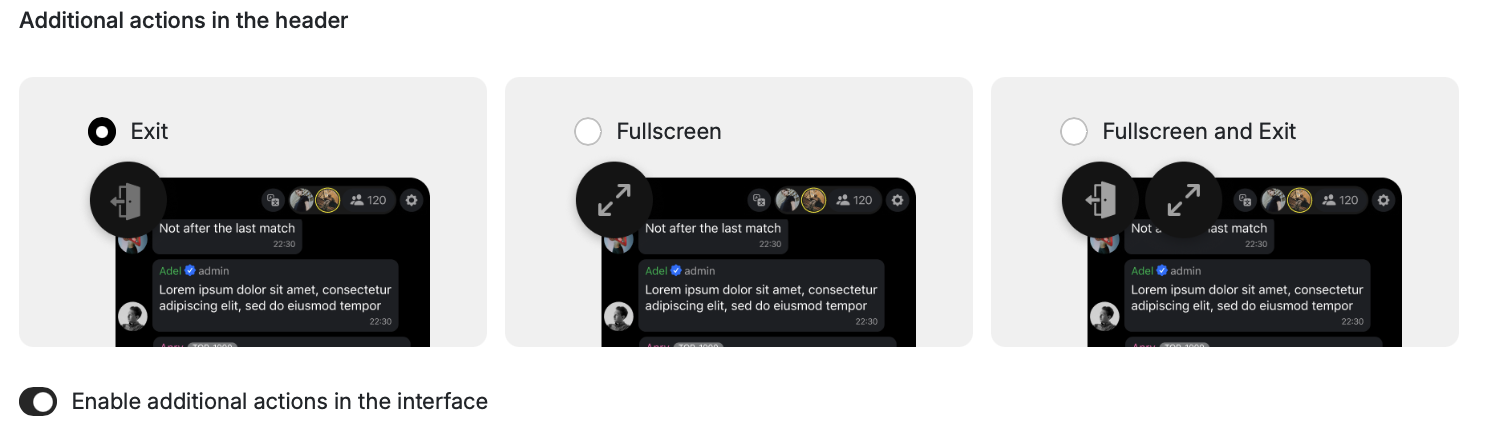
The choice applies only to the platform you have selected. To configure both web and mobile-app embeddings, repeat the steps after switching the platform tab.
Listening for the events on the parent page
Exit button
When the user clicks Exit, the chat sends:
{ type: 'watchersWindowClose' }Example listener:
window.addEventListener("message", (event) => {
  if (event.data?.type === "watchersWindowClose") {
    // Hide the iframe or trigger any other closing behavior
  }
});
Full screen button
When the user toggles Full screen, the chat sends:
{
  type: 'fullscreen',
  body: {
    action: 'collapse' | 'expand'
  }
}
Example listener:
window.addEventListener("message", (event) => {
  if (event.data?.type === "fullscreen") {
    const action = event.data.body?.action; // 'collapse' or 'expand'
    // Resize the iframe to full screen or back to the embedded size
  }
});
Notes
- If you pick Full screen and Exit, configure your listener to handle both
watchersWindowCloseandfullscreenevents. - Always validate the origin of the
messageevent before reacting to it. - Picking None does not affect any other header buttons (Share, Settings, Profile, etc.) — they are configured by their own toggles in the Chat settings block above.