
Tips API Integration Guide
Watchers provides chat UI components, user actions, notifications, and API hooks that allow a partner platform to enable user-to-user or user-to-streamer tipping experiences inside the chat room: a viewer can tip another user or a streamer directly from the chat interface — the receiver gets a notification and can accept, return, or block the tip.
This guide describes how to connect Tips API to your own payment infrastructure.
Use Tips API to increase engagement and monetization in your chat rooms: live streams, sports events, community discussions, and other interactive formats.
Please note that Watchers acts solely as a software provider and API orchestrator for tip-related user interactions in chat. Watchers does not hold, receive, transmit, settle, or safeguard funds, and does not provide payment accounts, wallets, money remittance, e-money, or other regulated payment services. Any transfer of funds or stored value is performed exclusively by the partner platform and/or its selected payment or wallet provider.
How It Works
Sending a Tip
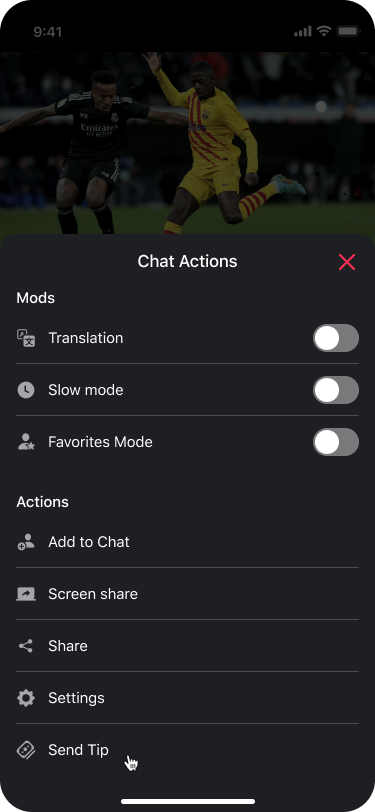
A user opens the tip form by tapping the tip button next to a message or through the Chat Actions menu (on streams).
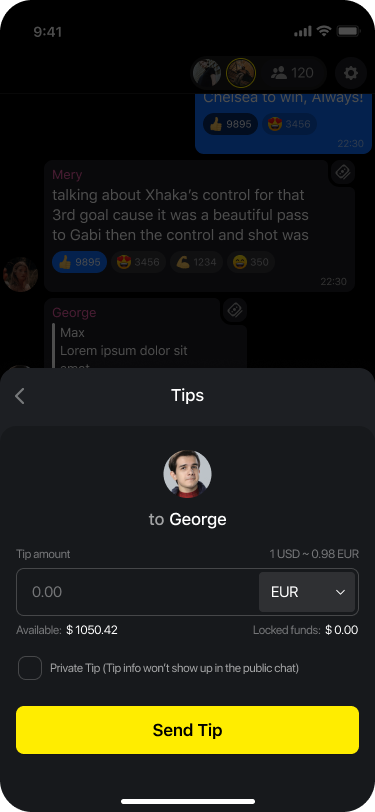
The tip form shows the recipient's name, an amount input with a currency selector, and the sender's available balance. The sender can also mark a tip as private — private tips won't appear in the public chat.
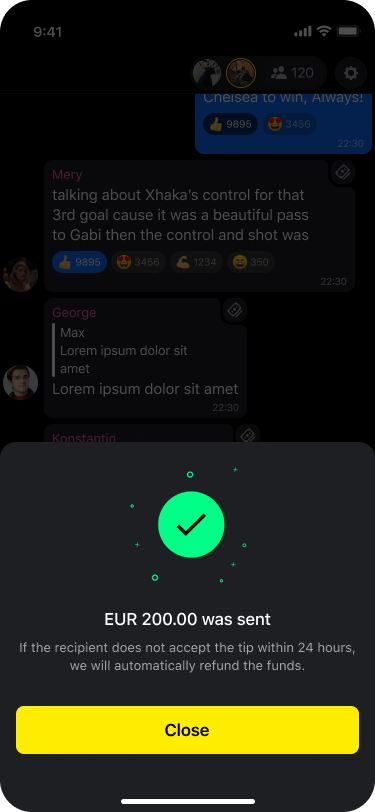
After sending, the sender sees a confirmation screen. The tip remains pending until the recipient responds. If the recipient does not respond within the configured timeout, the tip is automatically declined.
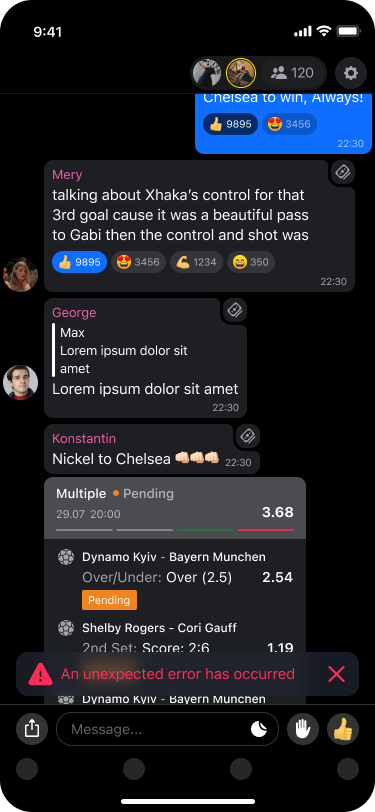
If the tip cannot be processed, the sender sees an error notification.
Receiving a Tip
When someone sends a tip, the receiver gets a banner notification in the chat with a countdown timer showing how long they have to respond.
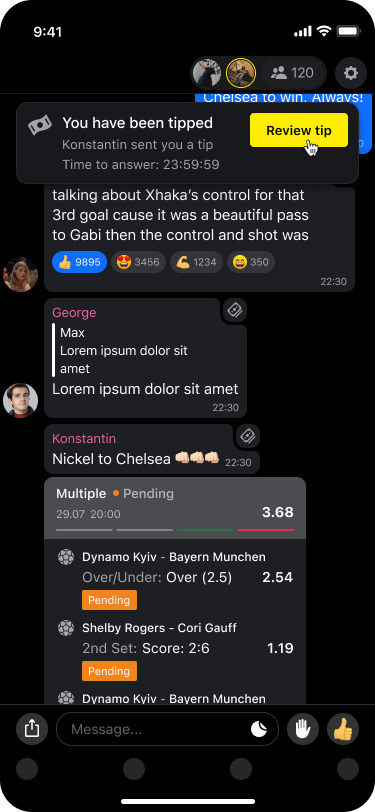
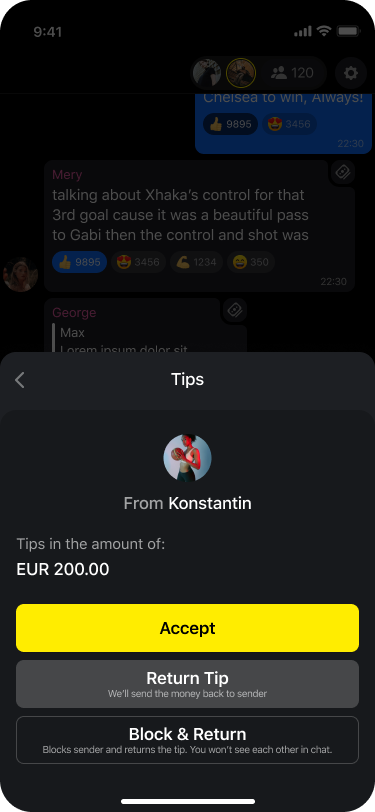
Tapping "Review tip" opens the tip details. The receiver has three options:
- Accept — the tip is processed and funds are transferred to the receiver.
- Return Tip — the tip is declined.
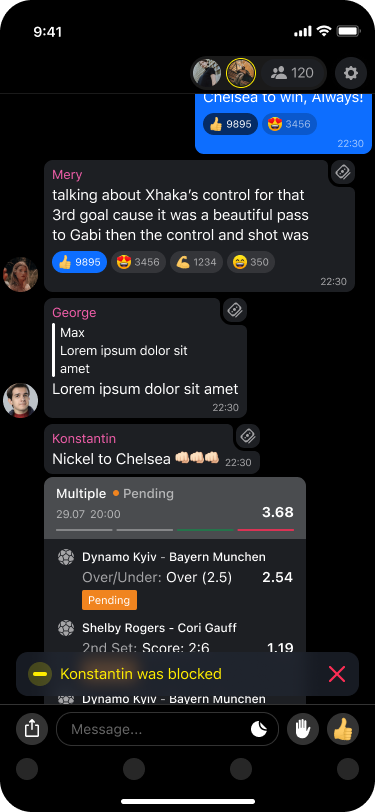
- Block & Return — the tip is declined and the sender is blocked. The users won't see each other in chat.
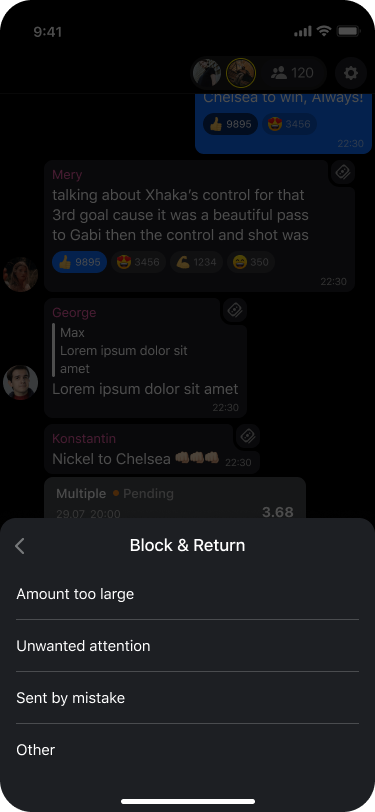
If the receiver chooses "Block & Return", they select a reason: "Amount too large", "Unwanted attention", "Sent by mistake", or "Other".
After declining, the sender sees a notification.
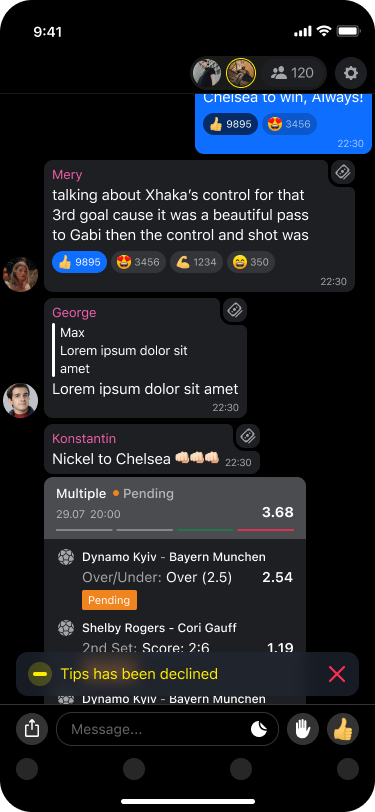
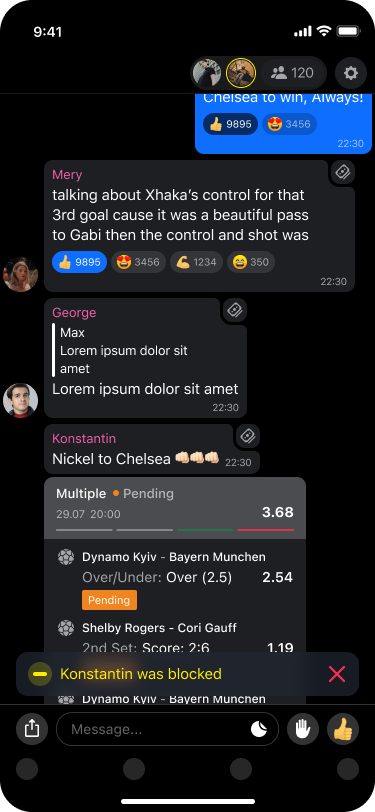
After blocking, a confirmation is shown.
Sending a Tip on a Stream
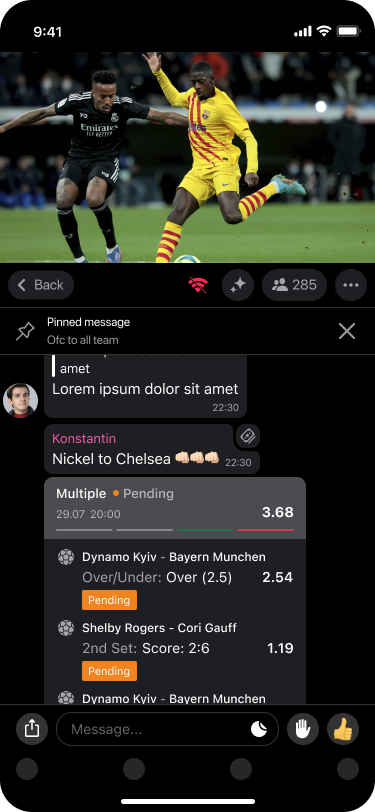
On stream pages, tipping is available through the Chat Actions menu. The user taps the menu icon and selects "Send Tip". The tip is sent to the streamer (room owner).
Admin Panel Setup (Required)
Before API integration, you must enable OAuth and tipping in Chat Admin.
OAuth is mandatory for tipping security.
If OAuth is disabled, tipping will be automatically unavailable.
- Open Functional settings.
- Enable
Oauth. - Fill in
Oauth url. - Click
Save. - On the same page, enable
Enable tipping. - Click
Saveagain. - Open Tips (this section appears after tipping is enabled).
Configure Tips section
- In
General, configure limits, room restrictions, accept timeout, cooldowns, role restrictions, and anti-abuse rules. - In
Claim settings, set:Tips claim URLTips claim bearer
- In
Currency and fees, add currencies, enable active ones, and configure payment fee. - Click
Save.
Mapping to integration fields
| Chat Admin field | Integration field |
|---|---|
Tips claim URL | partnerUrl |
Tips claim bearer | partnerToken |
These values are used in the Process payment and Get payment status endpoints.
Required headers for all API endpoints
| Parameter | Description |
|---|---|
| Authorization | Bearer token that you can get from the back office (Admin panel / Settings / Bearer tokens) |
| project | Your project identifier |
Endpoints you must implement
These endpoints are called by the Tipping Service. Your backend must implement them.
Validate user
Called on every tip creation — twice: once for receiver, once for sender. Validates that users exist in the room and are allowed to tip.
GET Endpoint: ${BACKEND_URL}/internal/talker/tip
Request query parameters
| Parameter | Type | Required | Description |
|---|---|---|---|
userId | integer | Yes | User ID to look up (sender or receiver) |
externalRoomId | string | Yes | Room identifier where the tip is being sent |
project | string | Yes | Project identifier |
CURL example (how the Tipping Service calls your backend):
curl --location '${BACKEND_URL}/internal/talker/tip?userId=42&externalRoomId=room-123&project=my-project' \
--header 'Authorization: Bearer ${INTERNAL_BEARER_TOKEN}'
Expected response:
{
  "externalUserId": "partner-user-abc123",
  "userName": "john_doe",
  "roles": "SPEAKER,MODERATOR",
  "isBanned": false,
  "reportCount": 0,
  "autoAcceptTips": false
}
Response fields
| Field | Type | Required | Description |
|---|---|---|---|
externalUserId | string | Yes | User's ID in your payment partner system. Passed to the payment partner when processing payment |
userName | string | Yes | Display name. Stored on the tip as senderUserName |
roles | string | Yes | Comma-separated roles in the room (e.g. "SPEAKER", "SPEAKER,MODERATOR"). Checked against allowedRoles setting |
isBanned | boolean | Yes | If true and denyBannedUsers setting is enabled — user is blocked from tipping |
reportCount | integer | Yes | If denyReportedUsers setting is enabled and reportCount >= denyReportedUsersThreshold — user is blocked |
autoAcceptTips | boolean | Yes | If true and user's role includes SPEAKER — tips are accepted automatically without manual action |
Validation checks applied:
| Check | Applies to | Error message |
|---|---|---|
| Endpoint returns 200 with data | Both | Failed to get user |
roles includes a role from allowedRoles | Receiver only | User role not allowed |
isBanned is false | Both | User is banned |
reportCount < denyReportedUsersThreshold | Both | User is reported |
Process payment
Called when a tip is accepted. partnerUrl and partnerToken are configured per project via admin settings.
POST Endpoint: ${partnerUrl}/payment
Request payload
| Parameter | Type | Required | Description |
|---|---|---|---|
senderId | string | Yes | Sender's externalUserId from the validate user endpoint |
receiverId | string | Yes | Receiver's externalUserId from the validate user endpoint |
amount | number | Yes | Tip amount |
currency | string | Yes | Currency code (e.g. "USD", "EUR", "COINS") |
internalTransactionId | integer | Yes | Tip ID in the Tipping Service. Use to correlate transactions |
CURL example (how the Tipping Service calls your payment partner):
curl --location -X POST "${partnerUrl}/payment" \
  --header "Content-Type: application/json" \
  --header "Authorization: Bearer ${partnerToken}" \
  --data '{
    "senderId": "partner-user-abc123",
    "receiverId": "partner-user-xyz789",
    "amount": 50.00,
    "currency": "USD",
    "internalTransactionId": 1
  }'
Expected response:
{
  "transactionId": "ext-txn-456",
  "status": "SUCCESS",
  "processedAt": "2025-01-15T12:05:00.000Z"
}
Response fields
| Field | Type | Required | Description |
|---|---|---|---|
transactionId | string | Yes | External transaction ID. Stored on the tip and used for status polling |
status | string | Yes | Payment result: PENDING, PROCESSING, SUCCESS, DECLINED, FAILED. Any unrecognized status is treated as PENDING |
processedAt | string | No | ISO 8601 timestamp |
Get payment status
The Tipping Service periodically polls this endpoint for tips in PROCESSING state.
GET Endpoint: ${partnerUrl}/payment/status/${transactionId}
CURL example:
curl --location "${partnerUrl}/payment/status/ext-txn-456" \
  --header "Authorization: Bearer ${partnerToken}"
Expected response:
{
  "status": "SUCCESS"
}
Allowed status values (case-insensitive):
| Status | Meaning |
|---|---|
PENDING | Payment queued, not yet started |
PROCESSING | Payment in progress |
SUCCESS | Payment completed. Tip is finalized |
DECLINED | Payment rejected. Tip is marked as declined |
FAILED | Payment failed |
Updated 3 months ago