
Chains (combined badges)
How to combine badges into a chain to encourage user progression and increase completion of target actions.
Badge chains are an effective feature for encouraging users to engage more frequently with chats and to complete a higher number of target actions. A chain is scope of combined badges, every next badge, when achieved, replaces the previous one.
How do badge chains work?
Location: Widgets > Badges and Achievements > Chains
To create a chain, click the Create button, select Create a chain, and then click Continue.
Next, you need to choose the type of chain: one that combines different badges as individual steps, or one that represents a single badge with multiple levels to achieve.
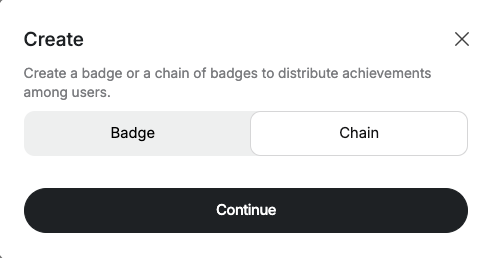
Сhain types
You can combine badges into two types of badge chains:
Single-title chain
A single-title chain combines multiple badges but displays progress using levels under one chain name. This allows users to see their overall achievement level rather than individual badge titles.
For example, you may have three badges based on the number of messages sent: Friend (5 messages), Bro (10 messages), and Chief (20 messages). When these badges are combined into a chain called Talkie, users do not see the original badge names. Instead, as they progress, they achieve Talkie 1, then Talkie 2, and finally Talkie 3.
Multiple-title chain
A multiple-badge chain combines badges and displays each badge as a separate level. In this case, you do not need to create a specific title for the chain.
As users progress, they see the titles of the individual badges they earn. However, each new badge replaces the previous one, so only the most recently achieved badge is displayed.
For example, you may have three badges based on the number of messages sent: Friend (5 messages), Bro (10 messages), and Chief (20 messages). When these badges are combined into a chain, users still see the original badge names. When they progress, they achieve Friend, then Bro, and finally Chief, and every new badge replaces the previous one.
Details of this choice will be described below.
Name and descriptions of chains
You can add a name and description to the chain. Use short, clear descriptions.
The name and description are visible to users only if the chain is created as a single-title chain.
If you combine badges into a multiple-title chain, the name and description will not be visible to users, they will see titles of separate badges but the chain title and description will remain visible in the admin panel (so, you will be able to distinguish and manage it).
Next, choose a colour pair and review how the chain will appear in the preview.
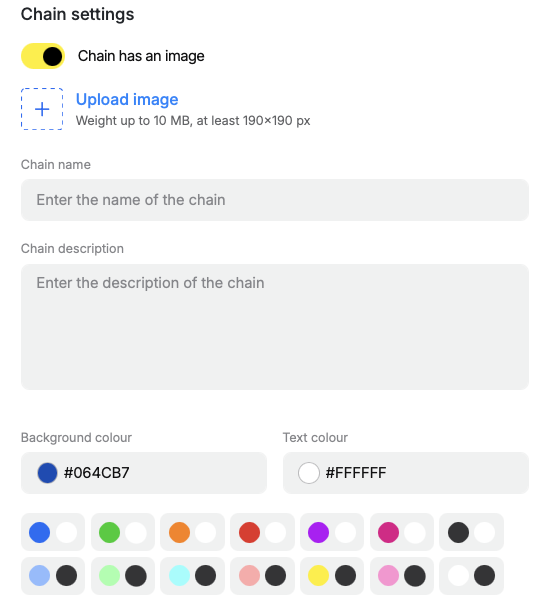
Usage of icons
You can also add icons to your badge chains. The images you add are automatically adapted to the chat size (18×18 px). Due to this very compact format, we recommend preparing the icons in advance with a specialist to ensure optimal readability.
Below, you can see examples of icon elements and how clearly they appear at this size.
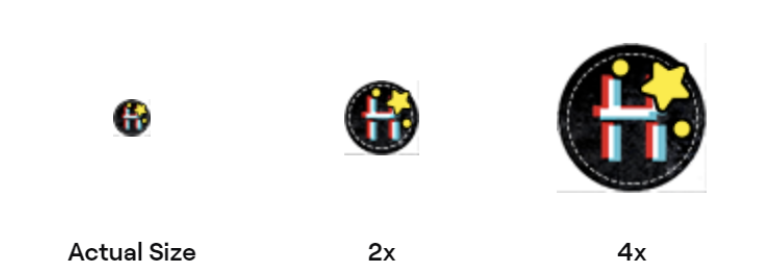
For the best experience, we recommend using clear shapes and contrasting colours.

At the actual size of 18×18 px, they appear as follows:
How to combine badges into a chain
1. Single-title chain
This allows you to apply a single name and description to all icons within a chain. As a result, the badges added to the chain are unified under one shared chain name and description.
For example, you may have three badges based on the number of messages sent: Friend (5 messages), Bro (10 messages), and Chief (20 messages). When these badges are combined into a chain called Talkie, users do not see the original badge names. Instead, as they progress, they achieve Talkie 1, then Talkie 2, and finally Talkie 3.
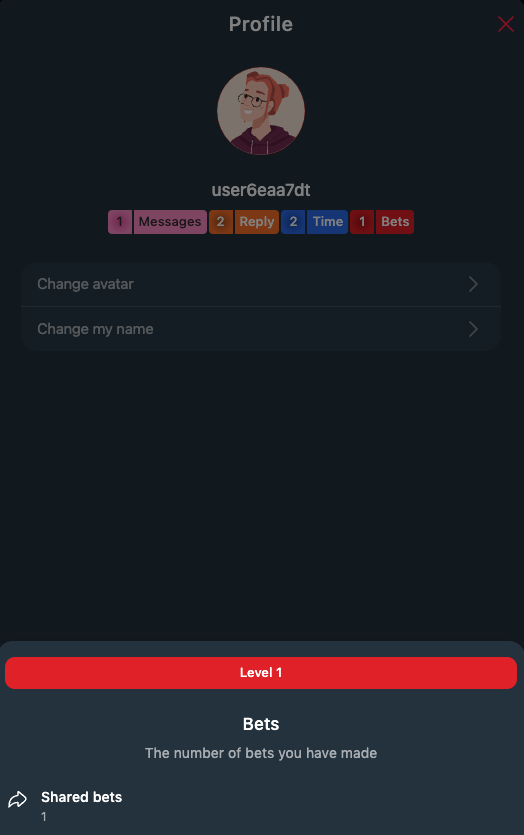
The chain name and description are visible to users in the chat interface.
Icons added to the chain affect only the level number displayed. Each time a user completes the conditions required to reach the next level, the number next to the icon increases, reflecting their progress within the chain.
In the image example, the user has met the badge condition, and the chain name and description are displayed instead of individual badge titles.
2. Multiple-title chain
A multiple-title chain combines badges and displays each badge as a separate level. In this case, you do not need to create a specific title for the chain.
The badges added to the chain are displayed to users one at a time, based on their progress. As a user advances, each new badge replaces the previous one, reflecting the current level they have reached.
Add a badge
Badges combined into a chain can be new (not yet achieved by any users) or already achieved (previously assigned to users).
This means you can add any previously created badge to a chain.
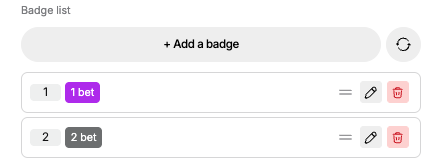
Each badge in the chain is assigned an order number, which represents its level within the chain. Arrange the badges in the order in which you want users to earn them.
Make sure to adjust the badge trigger conditions to reflect increasing task complexity. The order of badges in the chain should correspond to the difficulty of their trigger conditions.
If this sequence is not followed, users will not see progress in the chain until they complete the simpler tasks first.
If chat participants receive multiple badges that are not part of a chain, they are displayed to other users as a badge list (as a row next to the nickname). In some cases, this list may become too long to fit on the screen, causing some badges to be hidden from view.
You can add these badges to a badge chain to avoid this issue. This approach allows only the current (most recently earned) badge to be displayed. This is most effective when the badges are consistent and represent the same type of action or achievement.
Badges can be assigned to users automatically using triggers (the most relevant approach for badge chains), manually or via the API. Badges API
Updated about 2 months ago