
Sportsbook and iGaming Integration Blueprint
One guide for placing the chat on a sportsbook or iGaming site: rooms, access, entry points and the integration checklist.
This blueprint is the single guide for placing the chat on a sportsbook or iGaming site: which rooms to create, who sees the chat, where the entry points go and what your team builds on the site side. The mobile screens below are a site at 390 px with the real chat inside.
Map: where the chat lives
| Place | Entry | Room |
|---|---|---|
| Every page (mobile) | Floating button or Chat tab in the bottom bar | General room |
| Sportsbook event page | Bets | Chat tab under the scoreboard | One room per event |
| Game lobby | Card with the latest message | iGaming room |
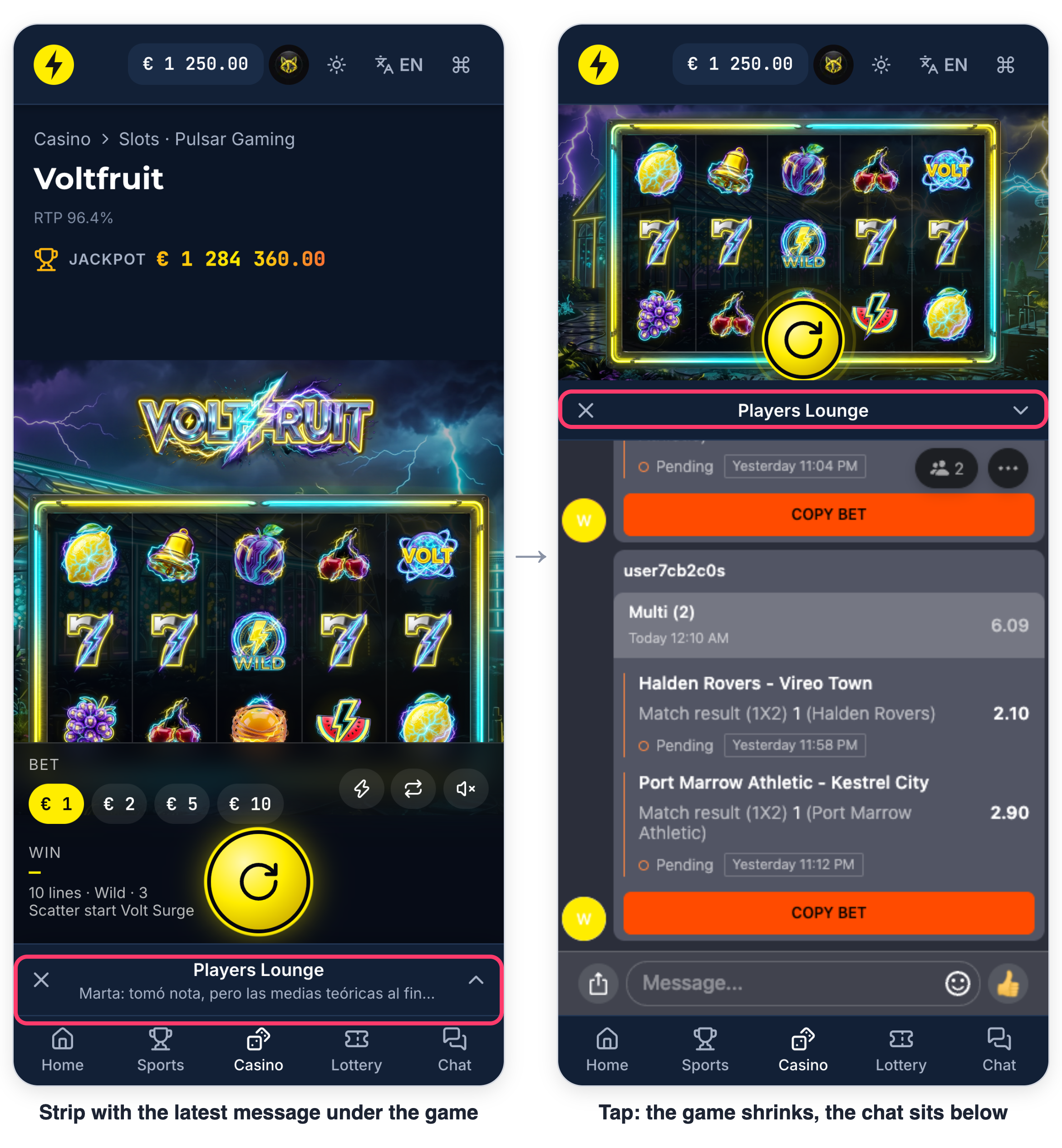
| Game page | Strip with the latest message under the game | iGaming room |
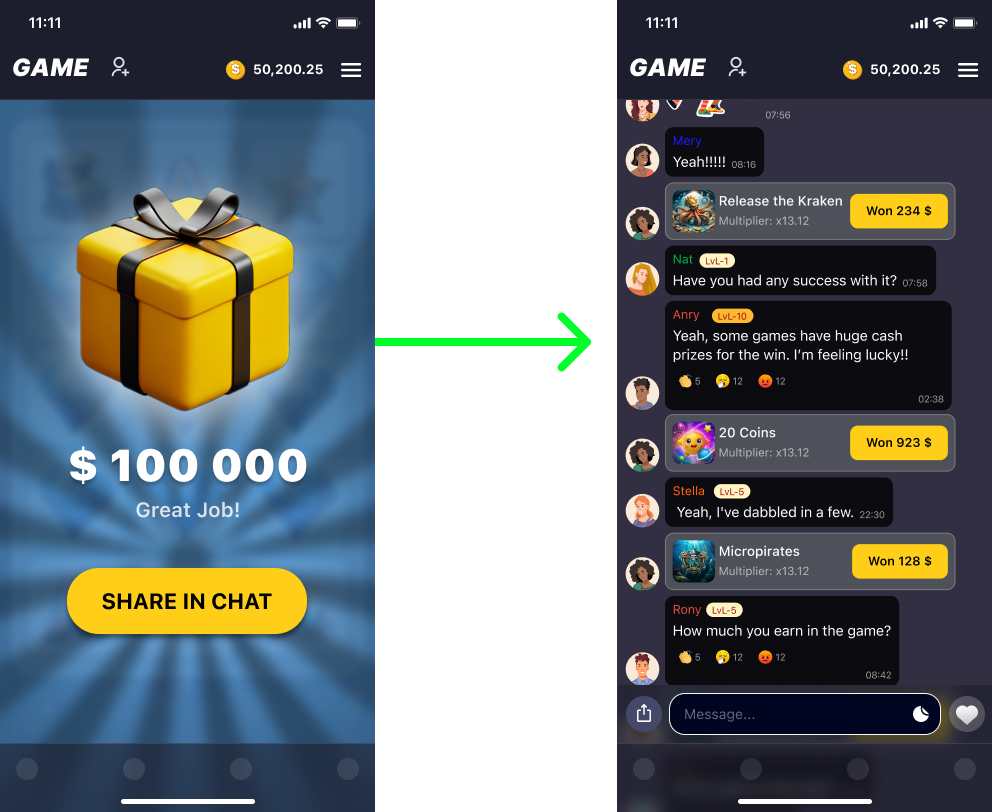
| Win screen | Button that opens the chat | iGaming room |
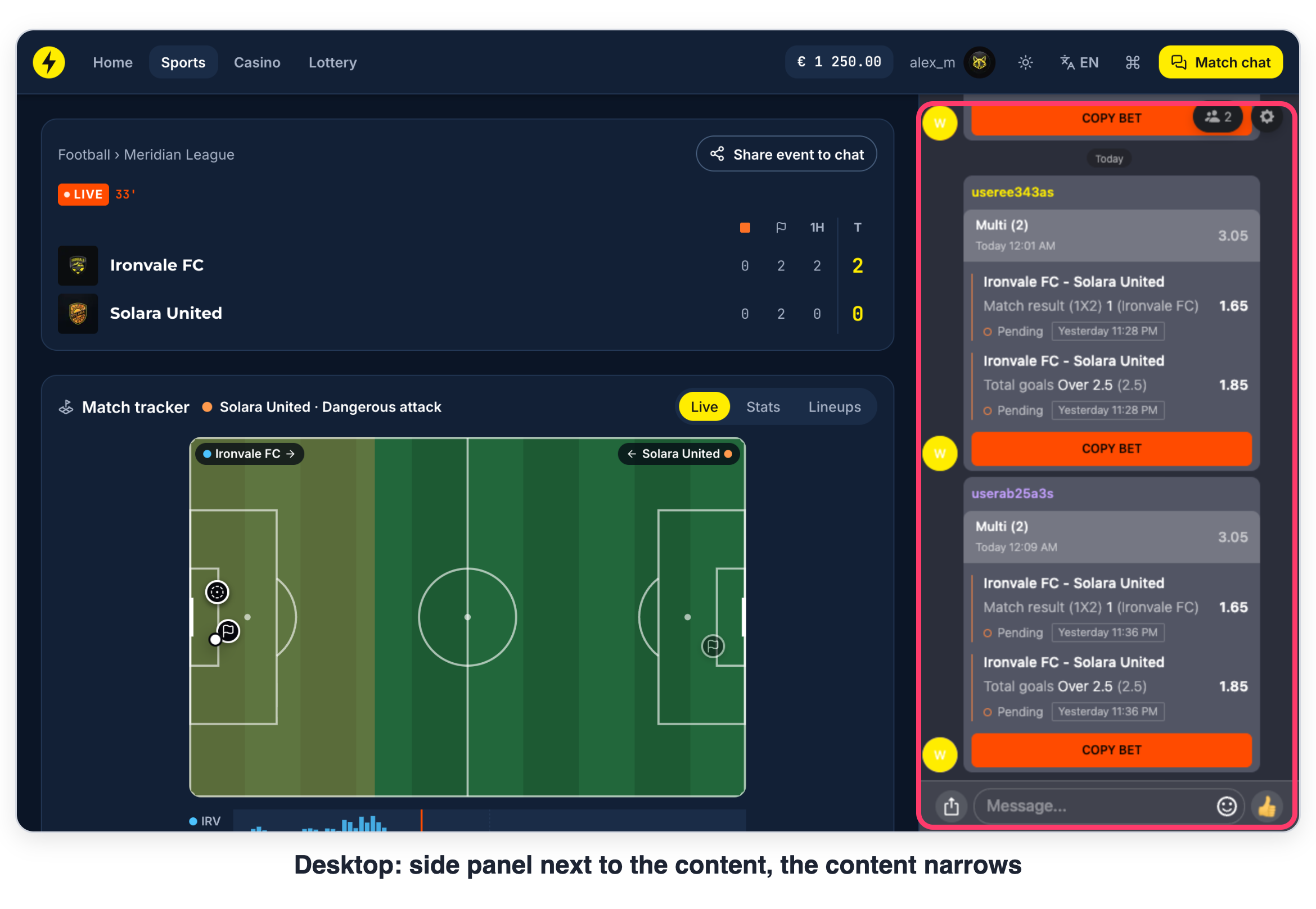
| Desktop | Side panel next to the content | Same rooms as on mobile |
Work through the steps in order: rooms and access first, then the entries.
Step 1. Plan the rooms
The chat URL always carries a roomId. The first time the chat is opened with a new roomId, the room is created, so the rooms follow your own ids and your site decides which room each entry opens.
- Sportsbook: one room per event. Use your event id as the
roomId, for exampleroomId=event12345. Players of the same match meet in one room and stay close to the markets. The room stays open for several hours after the event ends; this period can be extended. - Sportsbook: general room. One more room for everything that is not tied to a match: what to watch and what to bet next. It sits behind the always-on entry.
- Tournament or sport rooms. Several events can share one room, for example all football matches open
roomId=football. - iGaming: one shared room. The most effective setup for iGaming is one room for the game lobby and all game pages. Players move between games and stay in the same conversation, and they discover new games from each other's wins.
- Fan clubs add a club room for members next to the main room, see Fan Clubs.
How many rooms you need depends on your audience:
| Monthly active users | Rooms |
|---|---|
| Less than 20K | One room for all entries: enough people to keep the conversation going |
| 20K to 50K | Event rooms if your players are active, one room if they are mostly passive |
| More than 50K | Split into event rooms: more specific conversations move the metrics faster |
You can start with event rooms and merge them later without changing the site: the Force single room setting sends every roomId of the project to one room. Turn it off when the audience grows, and the same entries open their own rooms again.
More: Organising and Splitting Audiences in Rooms, How rooms appear on your platform.
Step 2. Decide who sees the chat
We recommend showing the chat to everyone, including guests: a live conversation is a reason to log in or register.
- Guests read, logged-in players write. Open the chat for guests in read-only mode (
readonly=truein the chat URL). Give every guest a uniqueuserIdall the same, so sessions and analytics stay correct. - Route the first tap to your login. When a read-only user tries to write or react, the chat sends
watchersAttemptClickto your page withpostMessage. Listen for it and open your login or registration. - Access criteria. The same mechanism works for logged-in players who do not meet your conditions yet, for example no deposit or no betting history: keep them in read-only mode and show what unlocks the chat.
- Nickname and avatar. Decide whether players appear with their site nickname and avatar or set separate ones for the chat.
More: User Flow: Authorisation Options, Read-only Mode UI.
Step 3. Choose the always-on entry: set A or set B
On mobile, the chat needs one entry that is reachable from every page. Pick one of two sets.
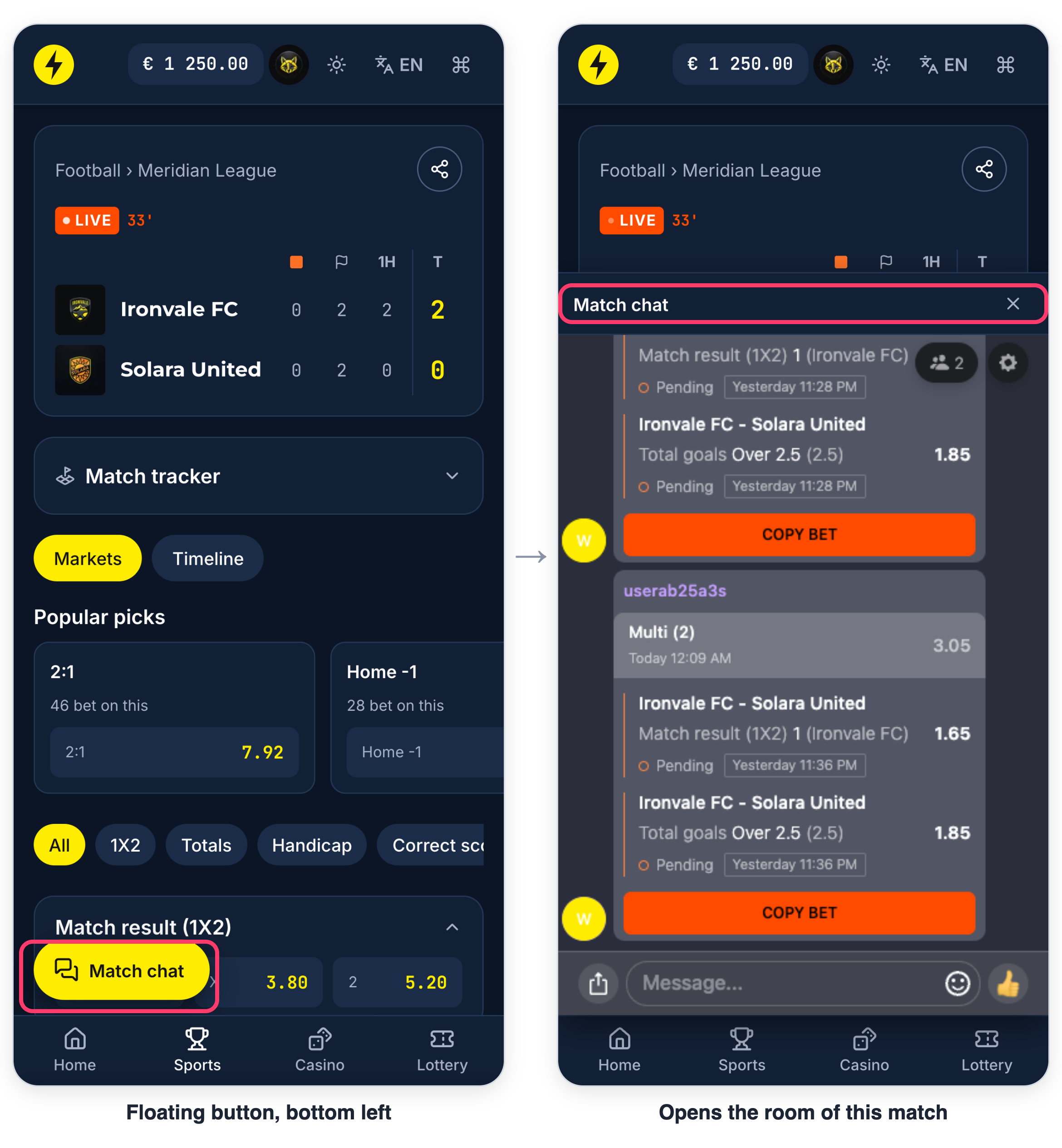
Set A: floating button only. Fits a sportsbook that runs as an overlay (for example, Altenar and similar providers), where the betslip button already floats on the right. Put the chat button bottom left, never bottom right: that corner belongs to support. With a floating button, the site has no other chat entries. On the event page the button opens the room of this match, not the general room.
Set B: no floating button. The Chat tab in the bottom bar is the always-on entry, the most convenient one on mobile and in apps. The event tab, the lobby card, the in-game strip and the win screen button from the map complete it. The chat opens as a fixed layer above the page.
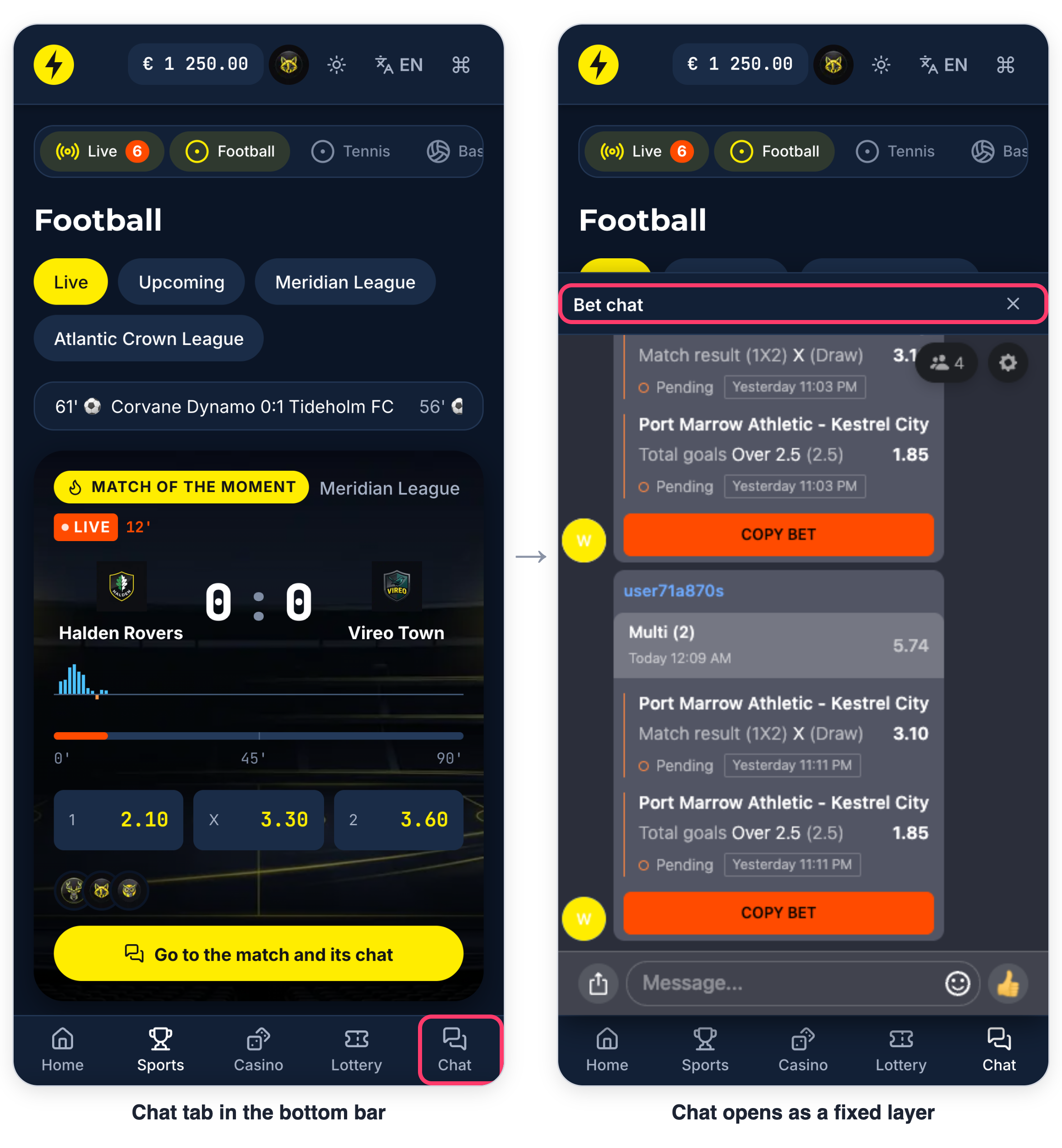
In both sets:
- The icon has two speech bubbles and a name ("Chat", "Match chat", "Players Lounge"). A single bubble or a headset reads as support.
- New messages show as a dot without a number.
- For the first sessions after launch, add a short hint next to the entry with a call to action, for example Join the chat and share your wins!
Step 4. Sportsbook event page
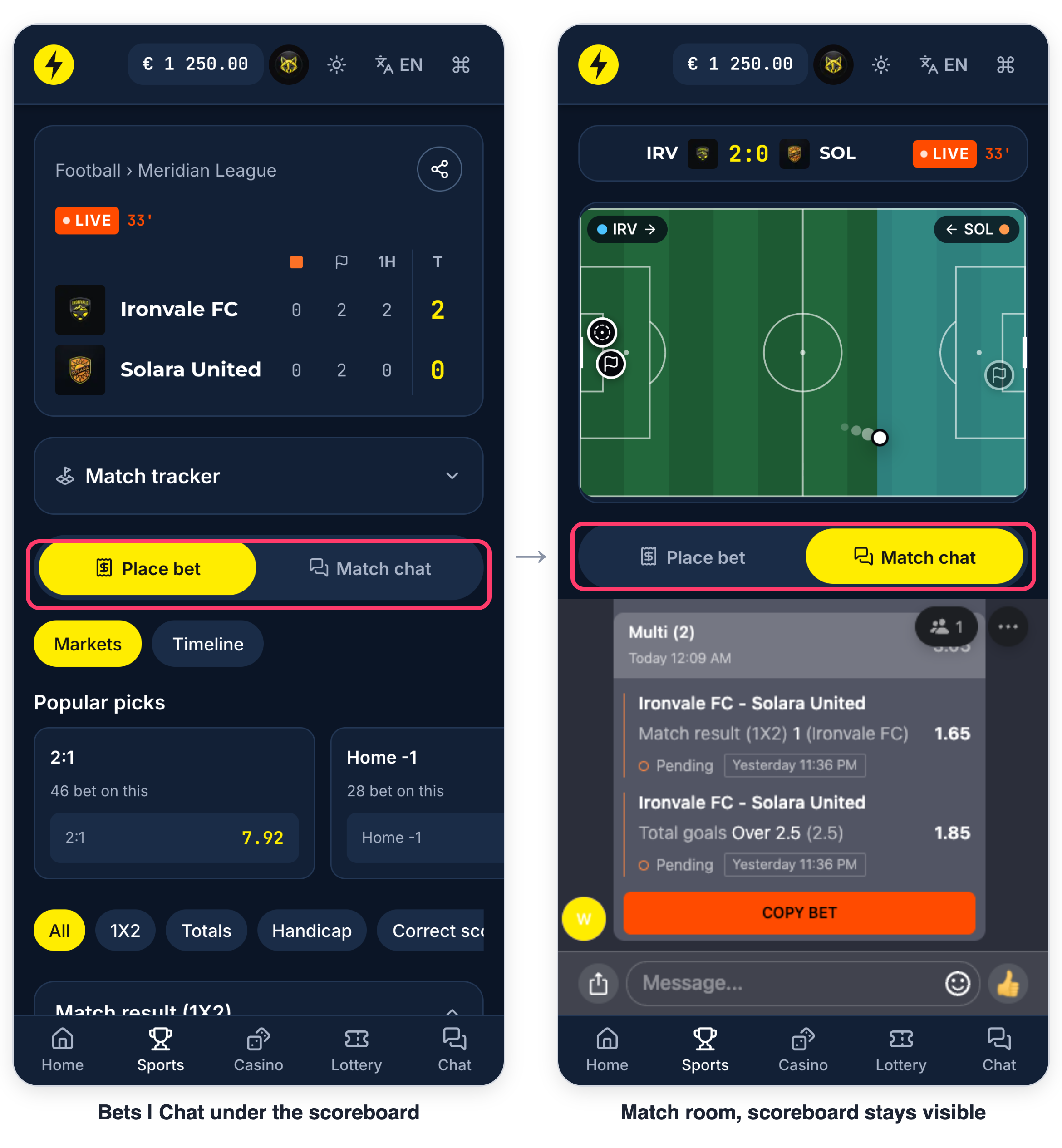
- Put a Bets | Chat tab right under the scoreboard, next to the market tabs. Chat replaces the markets, the scoreboard stays visible, so players follow the match and the conversation together.
- The tab opens the room of the event (
roomId= event id). - If your betslip is fixed above the content, end the chat above the betslip, otherwise the betslip covers the message field.
- If the scoreboard and markets are rendered by a sportsbook provider widget, the tab goes in together with the provider.
- In set A there is no tab: the floating button opens the match room.
Step 5. iGaming: lobby, game and wins
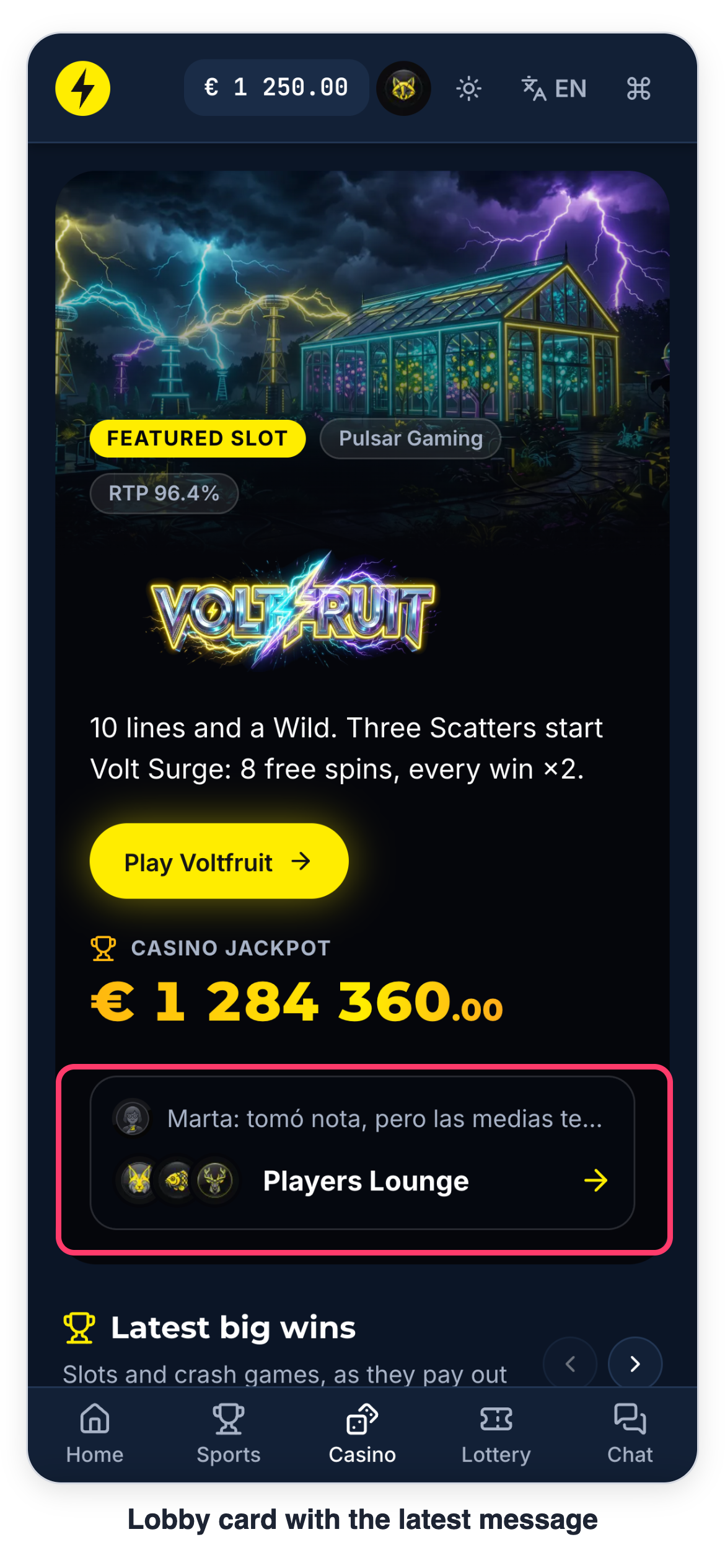
Game lobby. A card with the latest message of the iGaming room, in the style of your site. A tap opens the chat.
Game page. A strip under the game with the room name and the latest message. A tap opens the split view: the game shrinks to the top, the chat sits below. You choose the chat height, for example half or a third of the screen. The chat never covers the game provider's controls (spin, bet, settings).
Win screen. After a win, a button on the win screen opens the chat, where the player shares the win as a card. Other players tap the card and open the same game.
Home page and menu. A visible chat button on the home page, with a hint that explains what the chat is for, works as an extra entry in set B. A menu or profile entry is fine only as an extra one, never as the main entry.
Step 6. Desktop
- The floating button is for mobile only. On desktop it gets lost or is taken for support.
- Open the chat as a side panel at least 320 px wide that shifts the content instead of covering it.
- The panel can stay open by default: players move between events or games and stay in the conversation.
- The latest message card and the event tab work on desktop the same way as on mobile.
Reasons to come back
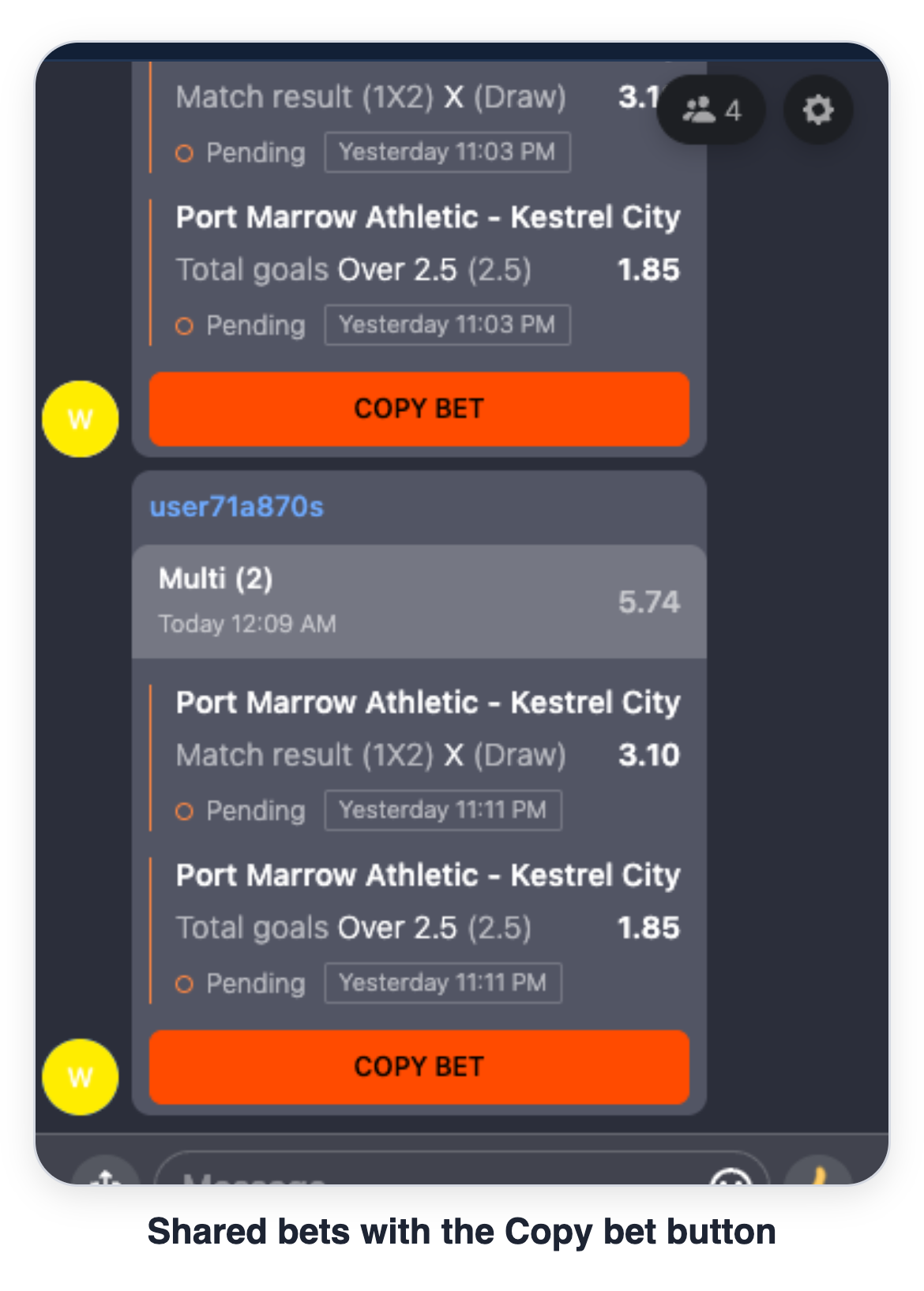
- Bet sharing and Copy bet. Players share bets as cards; a tap on Copy bet puts the same selections into the player's betslip on your site. See Message to copy and event sharing widgets; the Copy-Widget integration guide is available on request.
- Wins sharing. Players pick a recent win from the list your backend provides and share it as a card. A tap on the card opens the game on your site, in the same tab, when the link open type is set to post message (Wins sharing guide available on request).
- Giveaways and pinned messages. Run giveaways and pin the key message of the match or promotion.
Mistakes to avoid
- Chat button in the bottom right corner. Players expect support there and bring their account issues to the community chat.
- A button without a name. An unlabeled icon looks like support or goes unnoticed. Give it a name and a hint for the first sessions.
- Chat inline in a scrolling page. On touch screens the finger gets trapped in the chat and the page stops scrolling. The open chat is always a fixed layer above the page: lock page scroll while it is open (on
htmlandbody), messages scroll only inside the chat. - Elements crossing the chat. The support button, a bottom panel or the betslip must not cover the chat or its message field. Check each page twice: at the top and after a typical scroll.
- Chat hidden in the menu. A menu entry alone is a long way to the chat. Keep the entry on the content.
- Floating button together with other entries. A floating button is the only entry on the site. Other entries combine freely: latest message card with a tab, tab bar with a banner button.
- More than two entries on one screen.
- Chat over the game controls. Shrink the game instead.
- Community chat that looks like support. Different icon, different name, different corner.
Integration checklist
- Get the project API key and region, then build the chat URL with
roomId,userId,apikey,langandmode(GET parameters guide available on request). The chat window needs at least 320 x 600 px; encode parameter values withencodeURIComponent. - Decide the rooms: room per event (
roomId= event id), general room, iGaming room; Force single room while the audience is small. - For guests, open the chat in read-only mode and route
watchersAttemptClickto your login. - Choose set A or set B and place the entries from the map.
- Open the chat as a fixed layer with scroll lock; on the event page end it above the betslip; in a game keep the provider's controls visible.
- Handle the exit button message if you show it (see Left side controls).
- Build the lobby card and the in-game strip on the Last Message API: one request returns the latest message for up to 50 rooms, and updates arrive about every 30 seconds (ask us to enable it for your project).
- Connect Copy bet and bet sharing (Copy-Widget) and wins sharing with the post message link type.
- On desktop, open the chat as a side panel that shifts the content.
- Test on a real phone: scroll lock, keyboard over the message field, betslip over the chat, back button, each page at the top and after a scroll.